
Incident alerts
Menu: Incidents → Alerts This is your primary triage queue.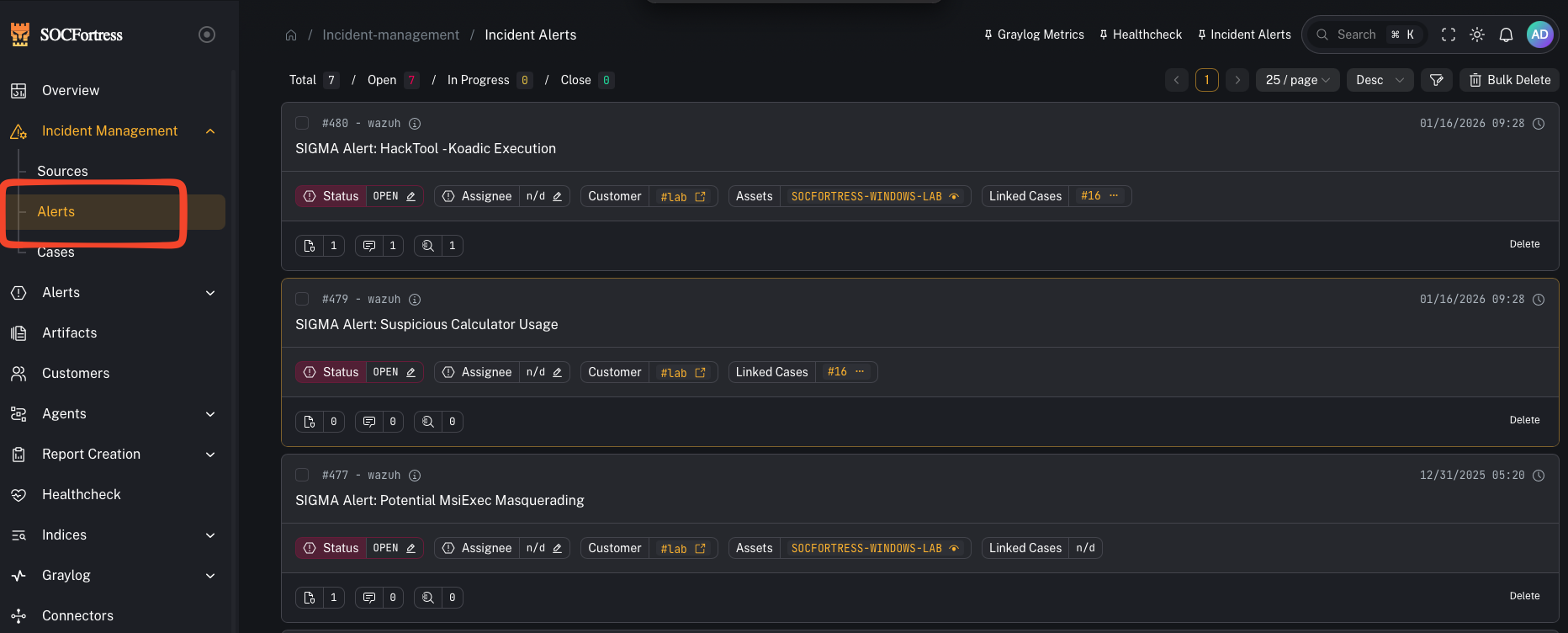
What you’re looking at
The Alerts view is split into two parts:- Alerts list (left): your queue (newest/most relevant alerts)
- Alert details (right or modal): the selected alert, with tabs like Overview and Timeline
/incident-management/alerts?alert_id=<id>
Step 1 — Triage an alert (quick workflow)
- Open Incidents → Alerts
- Click an alert in the list to open details
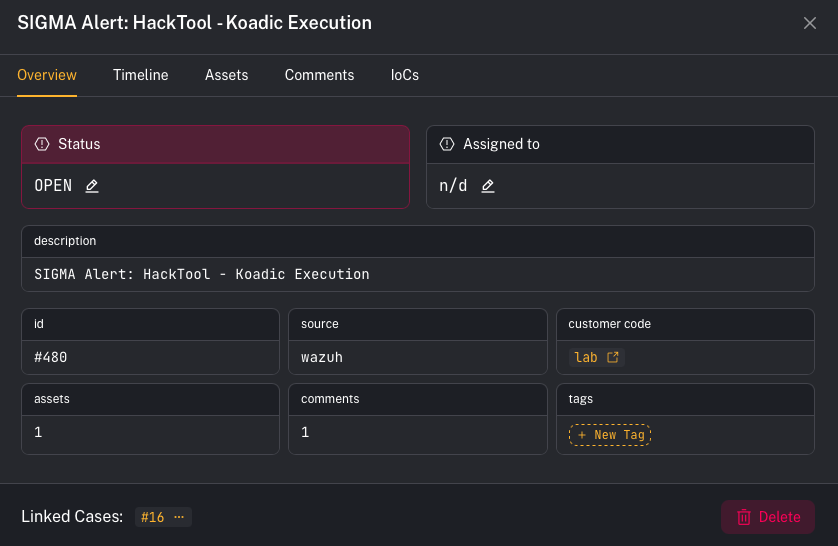
- In Overview, confirm:
- Customer (tenant)
- Title / Description
- Assets impacted (an alert can include multiple assets)
- Any existing Tags, Comments, and IOCs
- Decide your next action:
- add a Comment (notes + handoff)
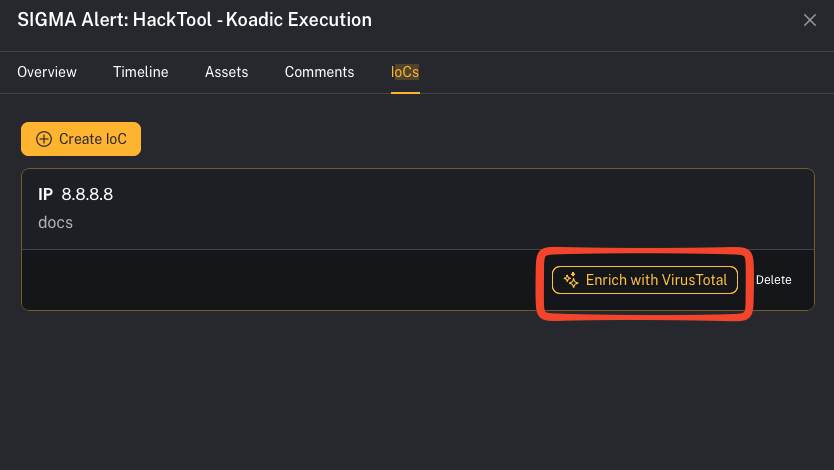
- add an IOC (evidence you want tracked)
- apply Tags (triage labels + RBAC visibility)
- move to a Case (if you need investigation tracking)
Step 2 — Filter the queue (find what matters fast)
Use the filter controls to narrow your queue.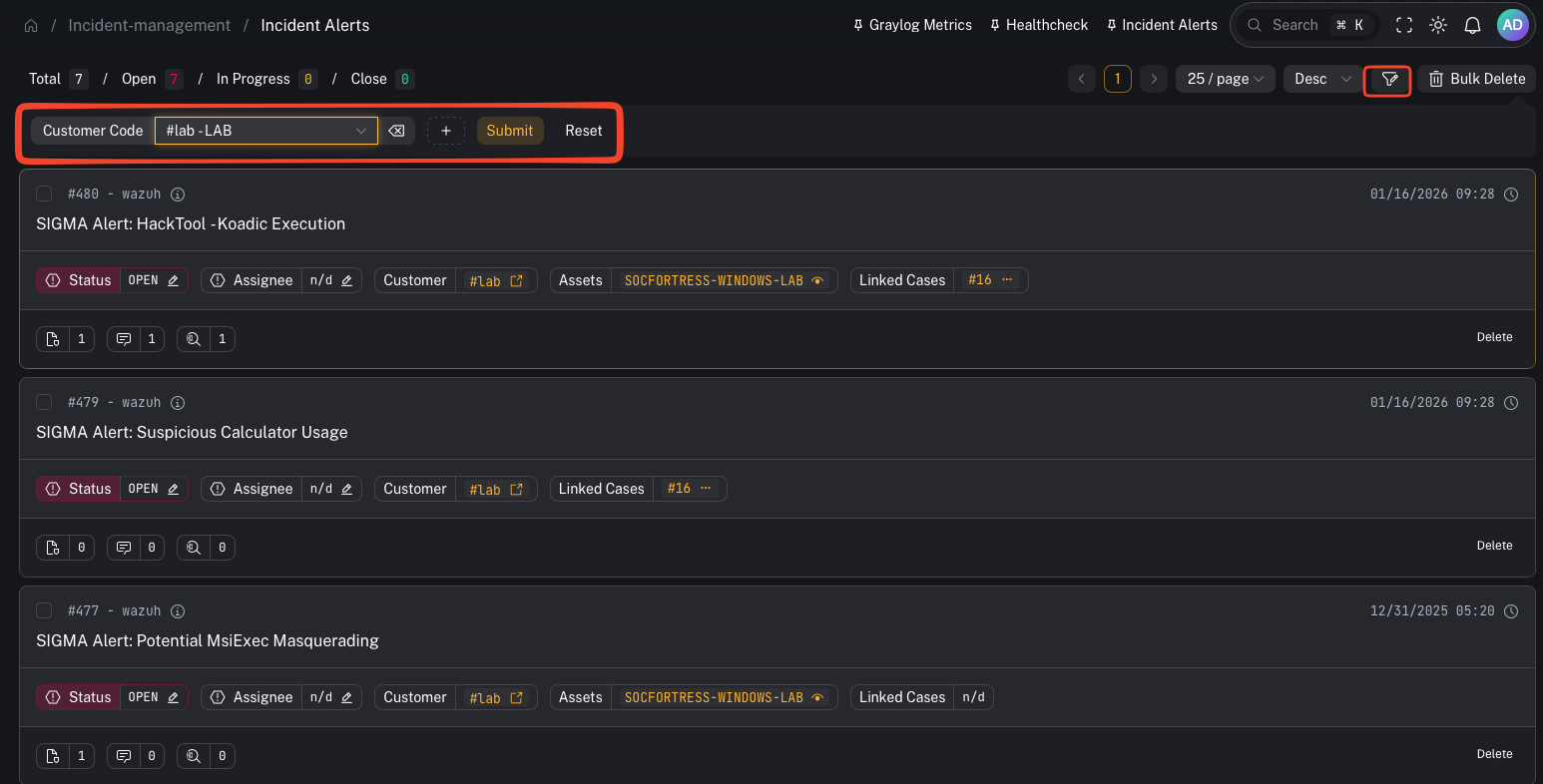
UI callout: Add filter → Customer Code + Tag
- Click Add filter
- Add Customer Code
- Pick a tenant from the dropdown (shows as
#<code> - <name>)
- Pick a tenant from the dropdown (shows as
- Add Tag
- The Tag filter is multi-select
- You can type a tag and press Enter to add it
- Click Submit to apply
- Status (Open / In progress / Waiting on customer / Closed)
- Assigned To (dropdown)
- Customer Code (dropdown)
- Source (dropdown)
- Tag (multi-select; type + Enter)
- Title (text)
- Asset Name (text)
- IoC (text)
- Filters are intended to speed up triage — they don’t bypass security.
- Customer scoping and tag-based visibility are enforced server-side.
Step 3 — Apply tags (triage + access control)
Tags are used for two things:- Triage / workflow labels (examples:
needs-validation,high-confidence,containment,false-positive) - Role-based access control (RBAC): some environments restrict alert visibility by tag.
- If an alert “disappears” from your view, it may be because:
- you no longer have access to that customer, or
- you don’t have access to one of the alert’s tags.
Step 4 — Understand assets on alerts (why one alert can have many)
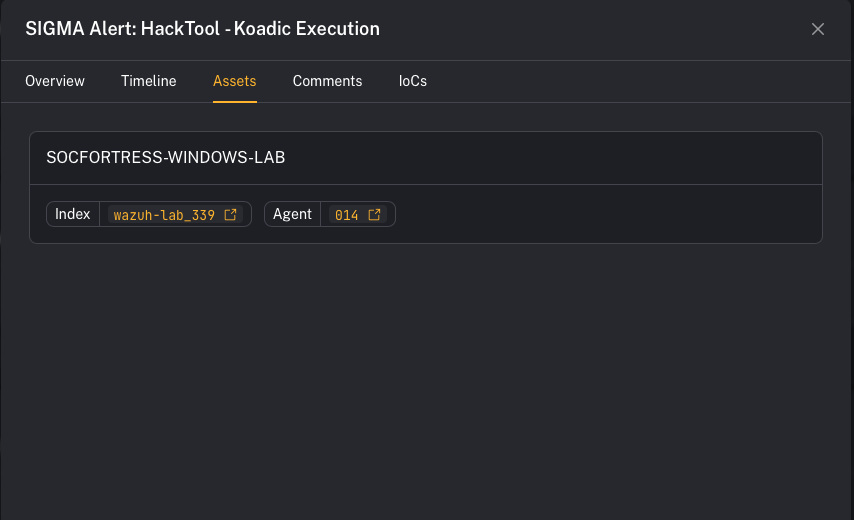
- If a new incoming alert matches an existing OPEN alert for the same customer and has the same title, CoPilot will not create a second alert.
- Instead, it adds the new asset to the existing alert.
- A new alert is created when:
- the previous alert was moved to a CLOSED phase for that customer, or
- the same title appears for a different customer.
- The alert title may look “unchanged,” but the asset list grows, which is often your first signal that scope expanded.
Step 5 — Comments and IOCs (collaboration + evidence)
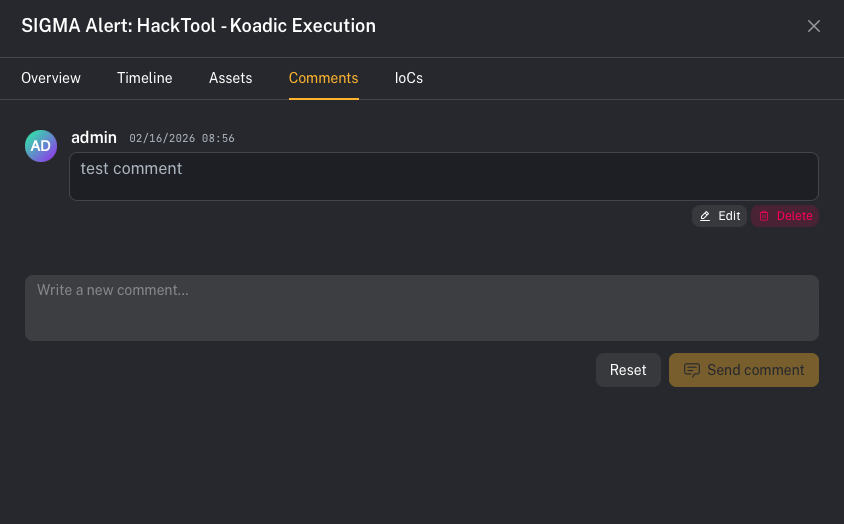
- Comments (for notes + handoff)
- IoCs (for evidence you want tracked)
UI callout: Add a comment
- Open the alert details
- Click the Comments tab
- Type into “Write a new comment…”
- Click Send comment
UI callout: Add an IOC
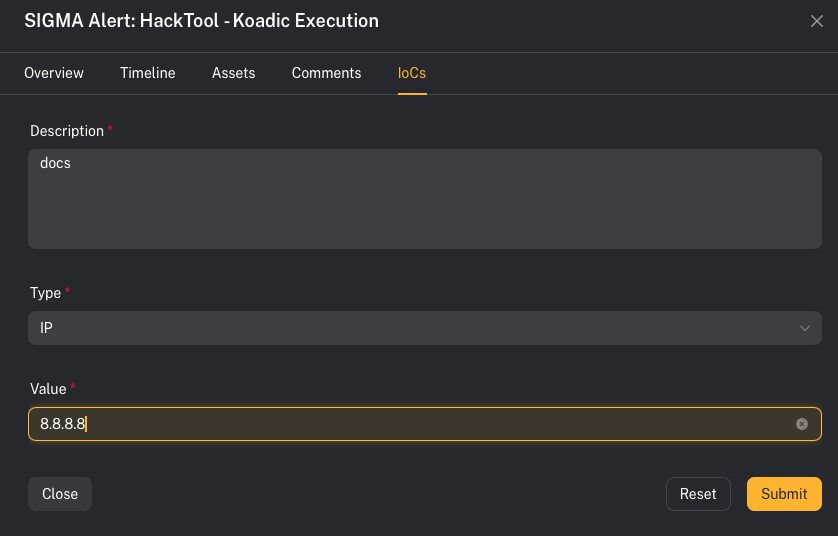
- Open the alert details
- Click the IoCs tab
- Click Create IoC
- Fill out:
- Description
- Type (IP / DOMAIN / HASH / URL)
- Value
- Click Submit
- The Value field is disabled until you select a Type.
- IOCs can be deleted later from the IoCs list.