
Artifacts (Velociraptor)
Menu: Respond → Artifacts CoPilot’s Artifacts feature integrates with Velociraptor (DFIR / threat hunting) to run Velociraptor Artifacts via the Velociraptor API and pull results back into CoPilot.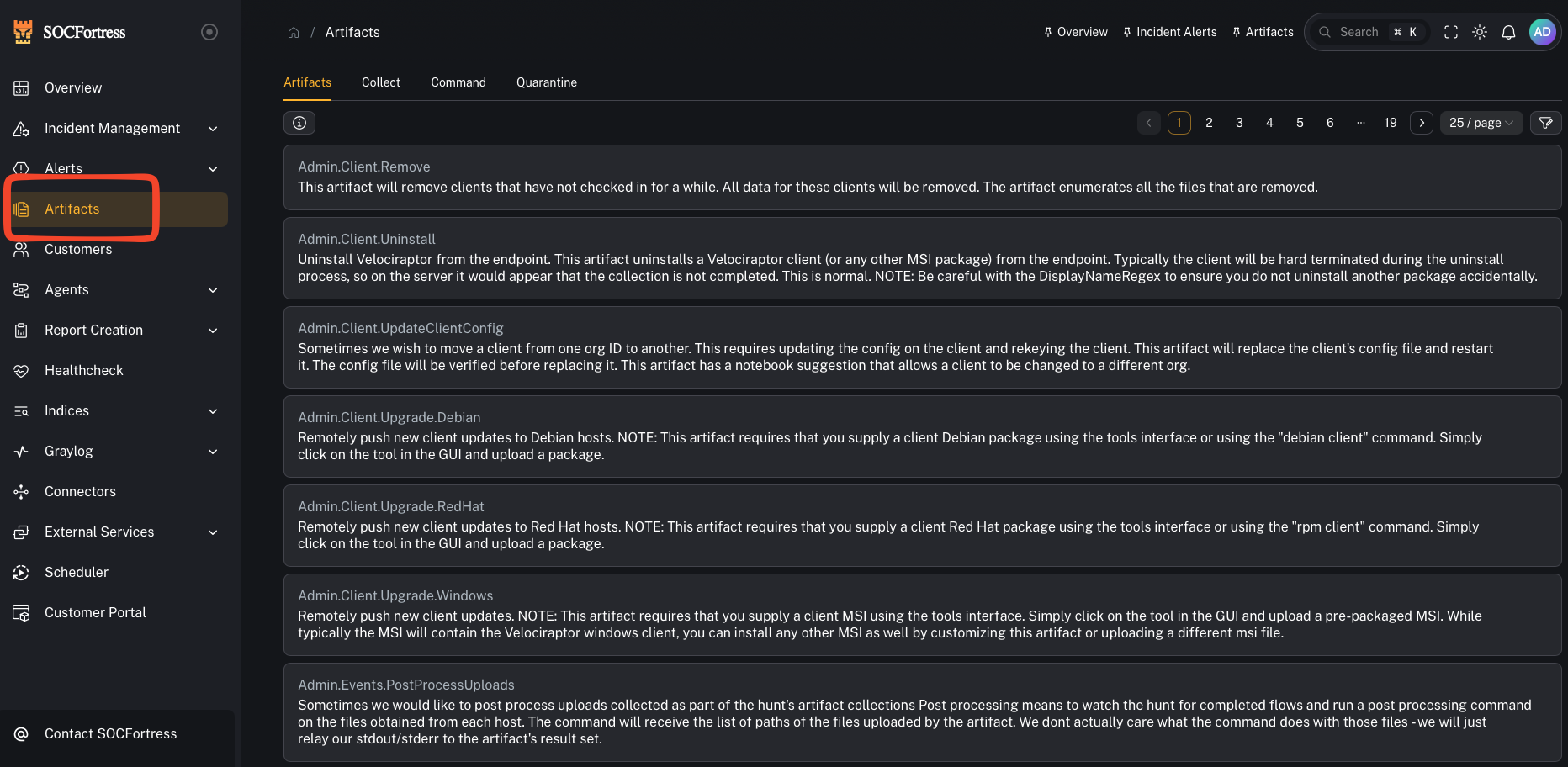
What is Velociraptor?
Velociraptor is an advanced digital forensics and incident response (DFIR) platform that gives you endpoint visibility and targeted evidence collection at scale. A few key concepts (Velociraptor terminology):- VQL: Velociraptor Query Language (how evidence is collected)
- Artifacts: packaged collections (YAML) of one or more VQL queries + parameters + preconditions
- Velociraptor docs: https://docs.velociraptor.app
- Artifacts concept: https://docs.velociraptor.app/docs/vql/artifacts/
What you can do in CoPilot
From an operator perspective, CoPilot lets you:- Select an endpoint (agent/hostname / Velociraptor ID)
- Choose an artifact to run (collection)
- Provide parameters (when the artifact requires them)
- Run the artifact and review the returned results
Before you start (required identifiers)
CoPilot needs a way to target the correct Velociraptor client. In the UI you’ll typically see fields like:- Hostname (optional)
- Velociraptor ID (the Velociraptor client id)
Step 1 — Run an artifact collection
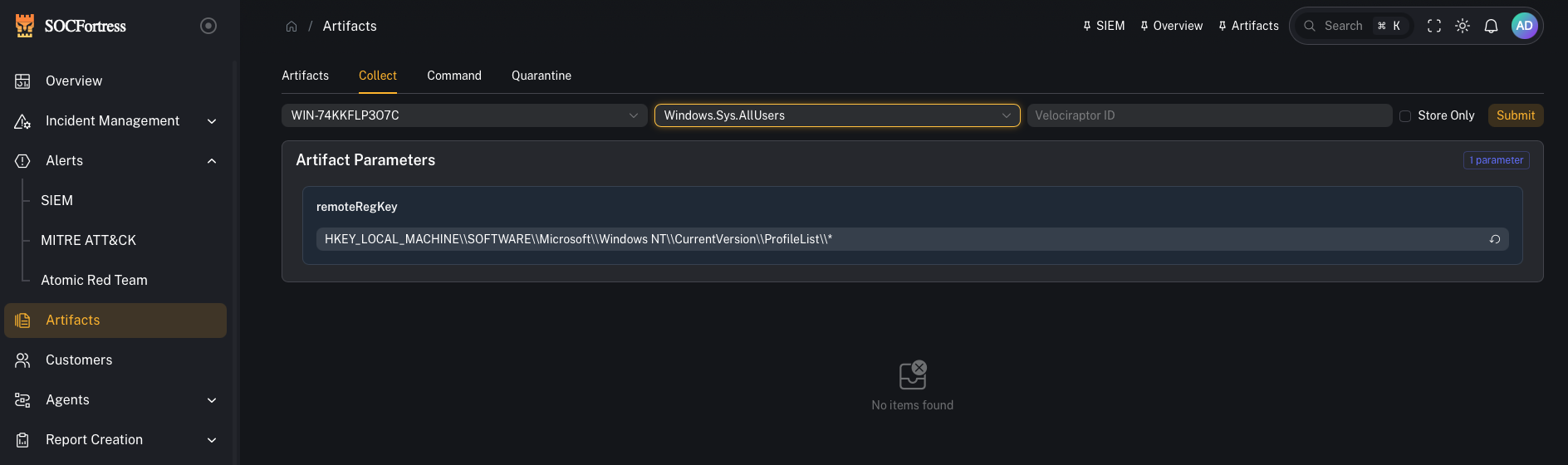
- Open Artifacts
- Select (or enter) the target endpoint (Hostname / Velociraptor ID)
- Choose the artifact you want to run
- Fill in any required parameters
- Start the collection
- Prefer artifacts that are targeted (high-signal) rather than “collect everything.”
- If an artifact supports parameters (time range, path, user, regex), start narrow.
Step 2 — Review results
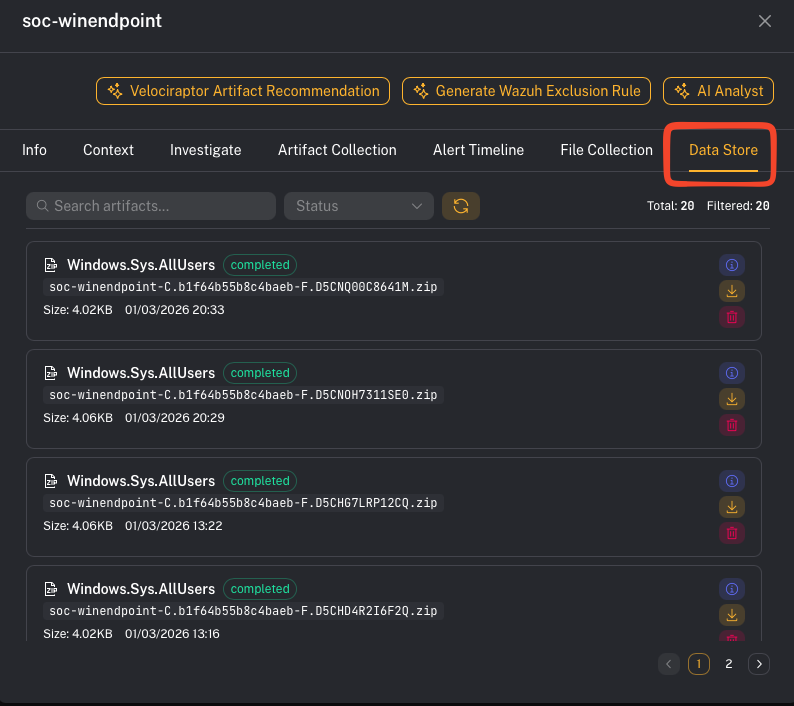
- returned rows/tables (the “answers” from VQL)
- any files collected (if the artifact uploads files)
- errors or skipped preconditions (common when an artifact is OS-specific)
- You can answer: what evidence did we collect, from which host, and what does it mean for the alert/case?
Step 3 — Use artifacts from an alert (fast triage)
CoPilot also surfaces artifact collection entry points from Alerts → Assets. Practical workflow:- Open an alert
- Go to the impacted asset
- Run a targeted artifact (process listing, persistence checks, event logs, etc.)
- Bring the result back into the case via notes/comments
Step 4 — (Optional) Artifact recommendations
Some CoPilot views may provide artifact recommendations to speed up response.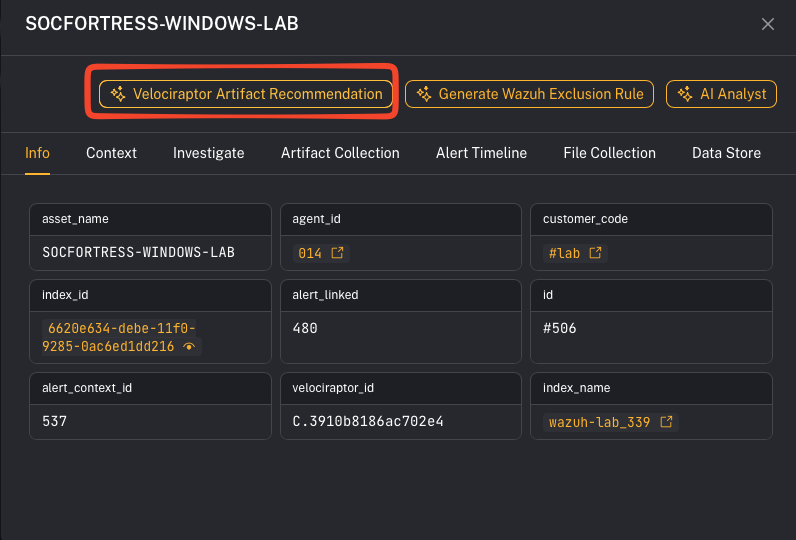
Operator artifact starter pack (recommended)
Use this section as a default playbook when you’re in triage and need to move fast.1) Identify the host (what system is this?)
Run:Generic.Client.Info(basic host facts)Generic.Client.DiskSpace(quick disk pressure check)
2) Process triage (what’s running right now?)
Run:- Windows:
Windows.System.Pslist - Linux:
Linux.Sys.Pslist
3) Network triage (is it talking to something?)
Run:- Windows:
Windows.Network.Netstat - Linux:
Linux.Network.Netstat
4) Persistence triage (will it come back?)
Run:Windows.Sys.StartupItems
5) Find a file fast (where is this binary/script across the host?)
Run:Windows.Search.FileFinder
6) Execution evidence (what ran recently?)
Run:Windows.Forensics.PrefetchWindows.System.Amcache(alternate view of execution evidence)
7) Log triage (high-signal Windows event hunting)
Run:Windows.EventLogs.EvtxHunter
8) YARA hunting (when you have an IOC or suspect binary)
Run:- Windows:
Windows.Detection.Yara.Process(fast, memory/process focused) - Windows:
Windows.Detection.Yara.NTFS(disk scan) - Linux:
Linux.Detection.Yara.Process
Tip: Start with Process-scoped YARA first (fastest), then broaden to disk if needed.
Common gotchas
“The artifact didn’t run / no results returned”
Common causes:- The endpoint doesn’t have a correct Velociraptor ID mapped.
- The artifact precondition skipped the collection (e.g., wrong OS).
- Velociraptor connectivity/API credentials are not configured correctly.