
Event Sources
Menu: Customers → (select customer) → Event Sources tab Best for: Admin / Engineer Event Sources tell CoPilot which index patterns to query for each customer when using Event Search. You must configure at least one Event Source per customer before Event Search will work for that customer.What is an Event Source?
An Event Source defines:Step 1 — Navigate to the customer’s Event Sources
- Go to Customers in the sidebar
- Select the customer you want to configure
- Click the Event Sources tab
Step 2 — Create a new Event Source
Click the + Add button and fill in the form: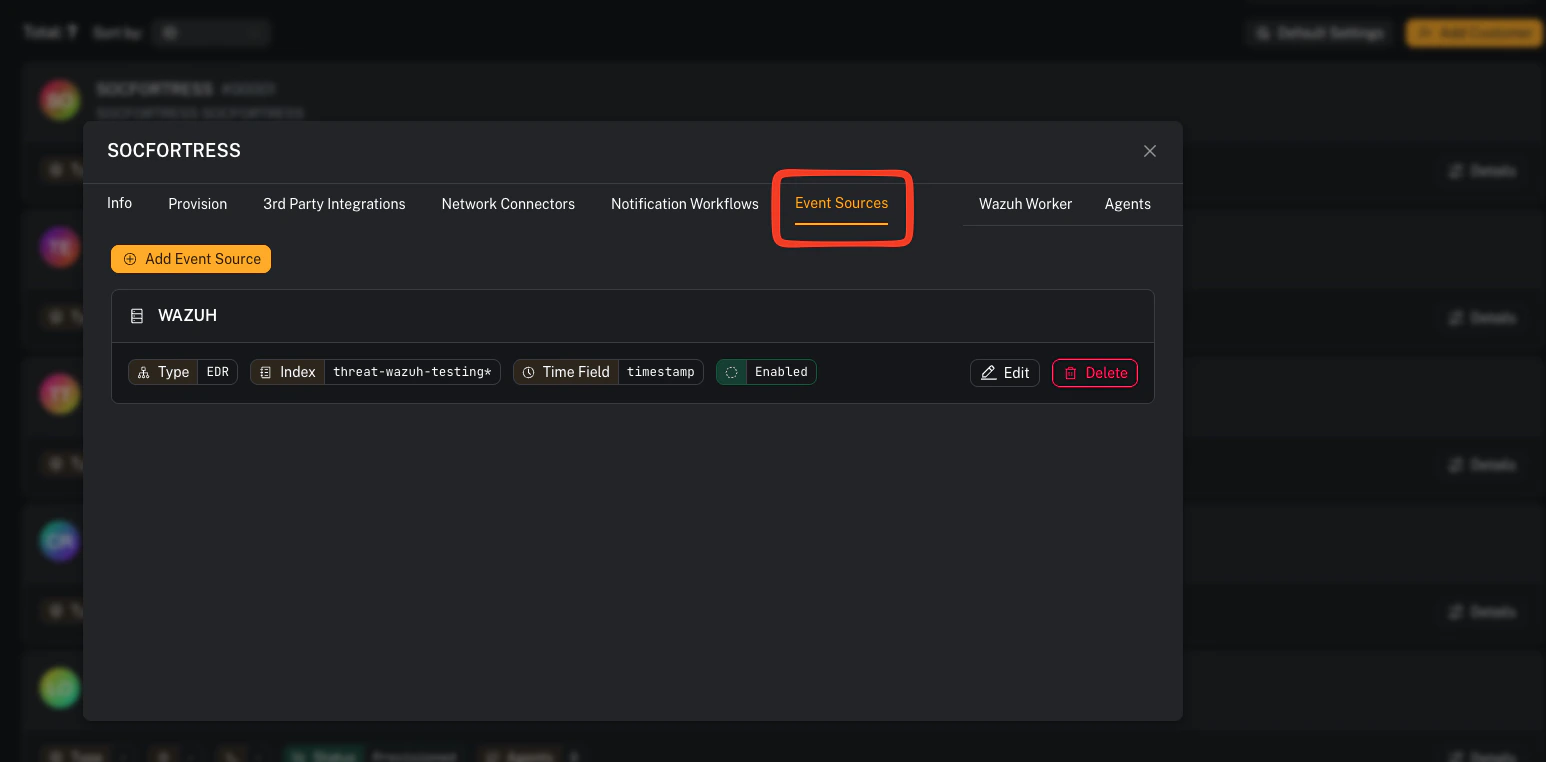
- The Index Pattern field auto-suggests patterns based on the customer code (e.g.
wazuh-lab_*) - For Wazuh/EDR data, use
timestampas the Time Field - Set Event Type to match the data type so analysts can filter sources by category
Step 3 — Edit or delete an Event Source
Each Event Source card shows its configuration at a glance. Use the action buttons to:- Edit — update the index pattern, time field, or toggle enabled/disabled
- Delete — permanently remove the source (admin only)
Gotchas
- A customer must have at least one enabled Event Source before Event Search will work for them. If none exist, a warning banner will appear on the Event Search page.
- Disabling an Event Source hides it from the Event Search dropdown but does not delete it.
- The index pattern must match actual indices in your Wazuh Indexer — double-check the pattern if searches return zero results.