
Incident sources (Graylog → Alerts)
Menu: Incidents → Alert Sources & Exclusions Best for: Admin / Engineer Incident Sources define how CoPilot turns Graylog event alerts into CoPilot Incident Alerts. In practice, Sources answer:- Which logs/index patterns are eligible to create alerts?
- How do we group alerts by “source” (Wazuh vs O365 vs Mimecast vs …)?
- Which fields become the alert title, asset, timestamp, and context we see in CoPilot?
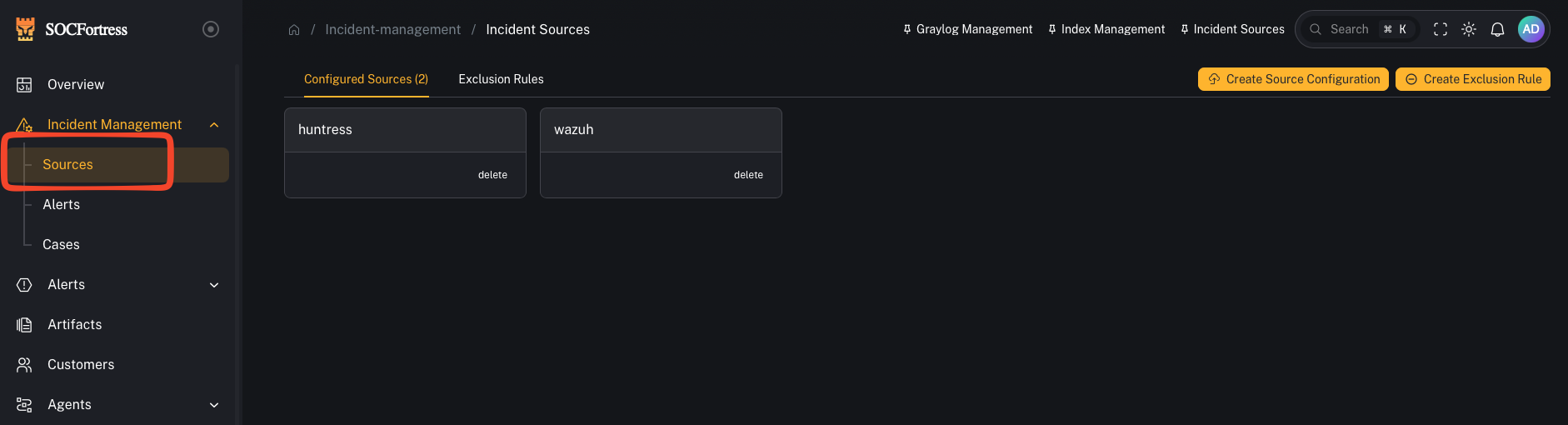
How alerting works (mental model)
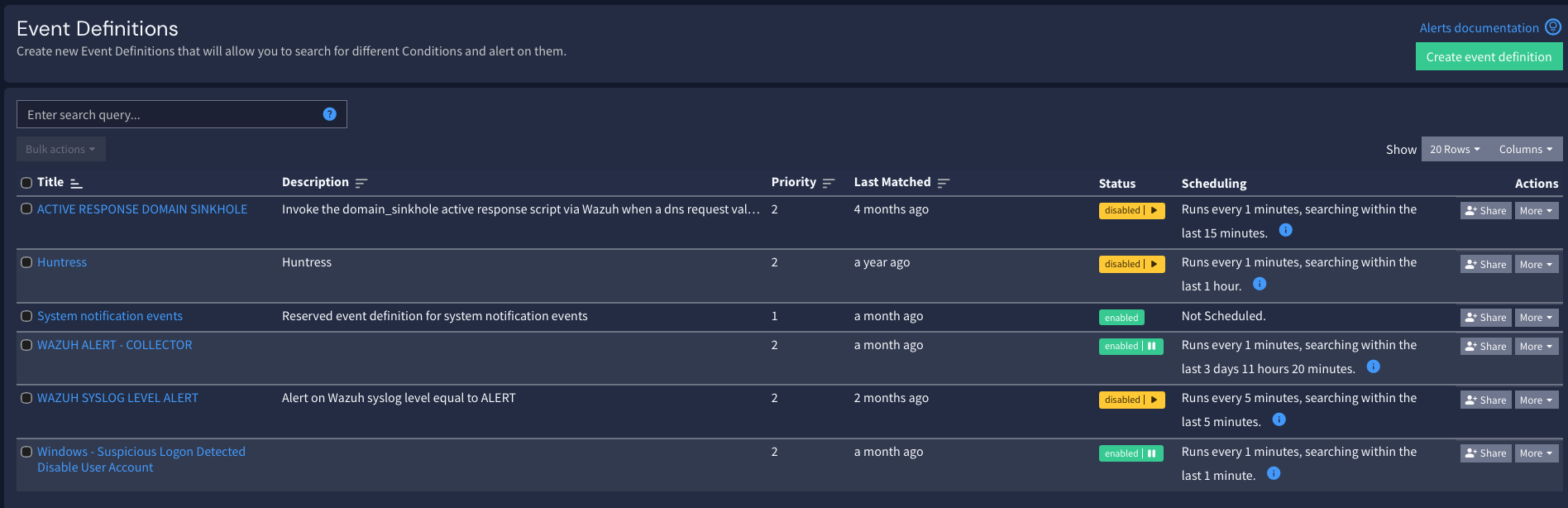
CoPilot uses Graylog to do the detection logic and searching. High level:- Graylog evaluates Event Definitions (your detection logic)
- When an event fires, Graylog writes an alert into an index (commonly
gl-events*) - CoPilot reads those event alerts and creates/updates alerts inside Incidents → Alerts
What a “Source” means in CoPilot
A Source is essentially an alert category. Examples:- Wazuh (endpoint alerts)
- Office 365
- Mimecast
- CrowdStrike
- Firewall / Syslog
Step 1 — Create a source
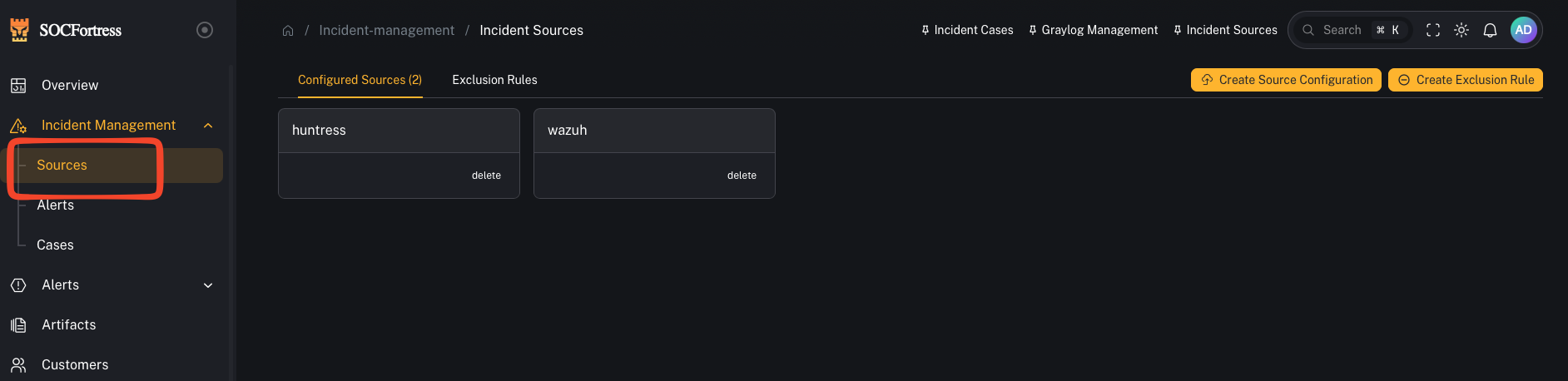
- Open Incidents → Alert Sources & Exclusions
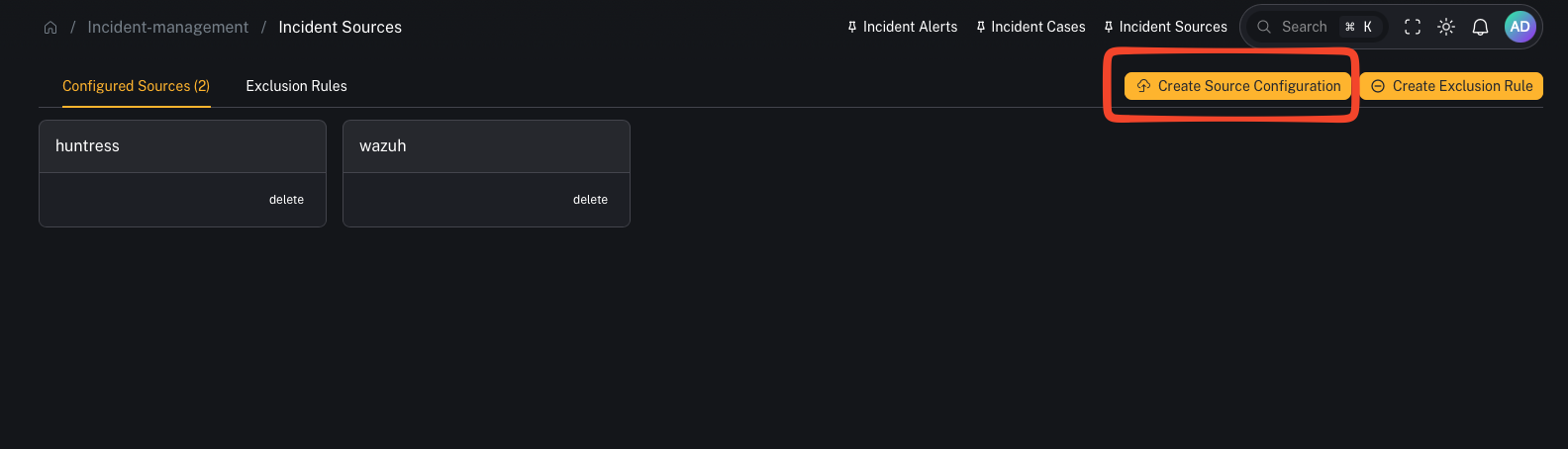
- Click to add a new source
- Give it a name you’ll use consistently (example:
wazuh,office365,mimecast)
Step 2 — Choose the index pattern(s) for this source
- This does not mean “alerts can only be created from this one index.”
- It’s defining what data CoPilot can use as alert context when it builds the alert record.
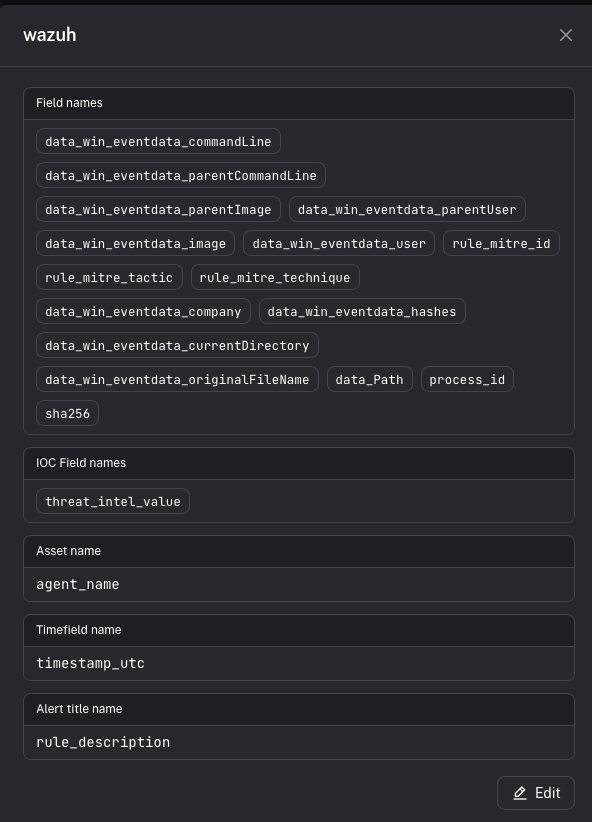
Step 3 — Map the fields CoPilot needs (the important part)
Alert title field
This becomes the alert’s title in CoPilot. Example (Wazuh):- rule description is often the best title field (it explains why it fired).
Asset name field
This controls which entity becomes the Asset on the alert (and is key for dedup/merging behavior). Example (Wazuh):- agent name is commonly used as the asset name.
Time field
This controls which timestamp CoPilot uses for alert ordering/timelines. Tip:- Pick the most reliable timestamp for the detection record you’re using.
Context fields
These are the fields you want visible inside the alert details. Important distinction:- Context fields are not the detection logic.
- Detection logic stays in Graylog Event Definitions.
- Context fields define what metadata CoPilot stores/displays when the alert fires.
Step 4 — Validate end-to-end
- In Graylog, confirm your Event Definition is firing (test with a known event)
- Confirm Graylog writes events into
gl-events* - In CoPilot, confirm a new alert appears under Incidents → Alerts with:
- correct Source
- correct Title
- correct Asset
- useful Context fields
Common gotchas
“Graylog is alerting, but CoPilot shows nothing”
Usually one of:- the event alerts aren’t being written where CoPilot expects (index / permissions)
- source field mappings don’t match the fields in the event payload